



Epson Auto Cutter Blade - Plot it Skip to Main Content

Your bag 0 items

Your bag is empty.

Delivery

Free standard delivery

Learn more about deliveries

Subtotal

£0.00 ex VAT

Epson

MPN: C12C815331

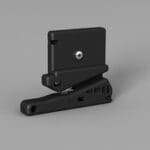
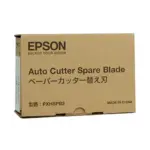
Epson Auto Cutter Blade

£124.00 ex VAT

£148.80 inc VAT

Fits SC-P6000, SC-P7000, SC-P7300, SC-P7500, SC-P8000, SC-P9000, SC-P9300 SC-P9500

Delivery from £4.99,
Free over £300

Learn more about deliveries

C12C815331 Replacement auto cutter blade

Fits the Epson Stylus Pro and SureColor wide-format printers listed.

Epson SureColor:

SC-P6000, SC-P7000, SC-P7300, SC-P7500, SC-P8000, SC-P9000, SC-P9300 SC-P9500 Printers

Epson Stylus Pro:

WT7900

How to Install the Epson AutoCutter C12C815331

1. Prepare the Printer

  • We recommend the use of safety gloves
  • Ensure the printer is powered on and in a ready state.
  • Remove any loaded media to prevent interference during the installation process.

2. Access the Cutter Compartment

  • Locate the cutter compartment on your printer. This is typically found on the front or side panel, depending on your printer model.
  • Open the compartment to expose the existing cutter unit.

3. Remove the Old Cutter (if applicable)

  • If replacing an old cutter, carefully detach it by loosening any securing screws or clips.
  • Gently remove the old cutter from its housing.

4. Install the New AutoCutter

  • Unbox the new C12C815331 cutter, handling it by the edges to avoid contact with the sharp blade.
  • Align the new cutter with the mounting points in the compartment.
  • Secure the cutter by tightening any screws or clips that hold it in place.

5. Calibrate the Cutter

  • Access the printer’s control panel and navigate to the maintenance or setup menu.
  • Select the option to calibrate or test the cutter. This ensures that the new cutter is properly aligned and functioning correctly.

6. Test the Installation

  • Load a test sheet of media into the printer.
  • Initiate a print job that includes a cut operation.
  • Observe the cutter’s performance to confirm clean and accurate cuts.

Important Installation Tips

  • Handle with Care: Always handle the cutter by its edges to avoid injury from the sharp blade.
  • Proper Alignment: Ensure the cutter is correctly aligned during installation to prevent operational issues.

Regular Maintenance: Regularly check and clean the cutter to maintain optimal performance

How to Install the Epson AutoCutter C12C815331

1. Prepare the Printer

  • We recommend the use of safety gloves
  • Ensure the printer is powered on and in a ready state.
  • Remove any loaded media to prevent interference during the installation process.

2. Access the Cutter Compartment

  • Locate the cutter compartment on your printer. This is typically found on the front or side panel, depending on your printer model.
  • Open the compartment to expose the existing cutter unit.

3. Remove the Old Cutter (if applicable)

  • If replacing an old cutter, carefully detach it by loosening any securing screws or clips.
  • Gently remove the old cutter from its housing.

4. Install the New AutoCutter

  • Unbox the new C12C815331 cutter, handling it by the edges to avoid contact with the sharp blade.
  • Align the new cutter with the mounting points in the compartment.
  • Secure the cutter by tightening any screws or clips that hold it in place.

5. Calibrate the Cutter

  • Access the printer’s control panel and navigate to the maintenance or setup menu.
  • Select the option to calibrate or test the cutter. This ensures that the new cutter is properly aligned and functioning correctly.

6. Test the Installation

  • Load a test sheet of media into the printer.
  • Initiate a print job that includes a cut operation.
  • Observe the cutter’s performance to confirm clean and accurate cuts.

Important Installation Tips

  • Handle with Care: Always handle the cutter by its edges to avoid injury from the sharp blade.
  • Proper Alignment: Ensure the cutter is correctly aligned during installation to prevent operational issues.


Regular Maintenance: Regularly check and clean the cutter to maintain optimal performance

Light shape background
Bricsys
C300
Canon
Canson
CAD Plot
Clustarack
Colortrac
Contex
Epson
Es-te
Gateway
Gera
GOframe
Goldline
Hahnemühle
HP
Innova
JetMaster
Kodak
Linex
Oce
Olmec
Neolt
Onyx
Plot it
Neschen
Ricoh
SiHL
Stratasys
Summa
Tervakoski
UltiMaker
Vistaplan
Xativa
Xerox
3M
Bricsys
C300
Canon
Canson
CAD Plot
Clustarack
Colortrac
Contex
Epson
Es-te
Gateway
Gera
GOframe
Goldline
Hahnemühle
HP
Innova
JetMaster
Kodak
Linex
Oce
Olmec
Neolt
Onyx
Plot it
Neschen
Ricoh
SiHL
Stratasys
Summa
Tervakoski
UltiMaker
Vistaplan
Xativa
Xerox
3M
Quote icon

We’ve had great reviews

We like new customers to make their purchase decisions on other buyers experiences, as such we partner with Trustpilot and actively seek reviews. Read more on Trustpilot….

Shape background

Sign up to our newsletter to get the latest news, special offers & exclusive deals.

You can unsubscribe any time, we will use your information in accordance with our Privacy Policy

Sign up

Privacy Policy | Terms & Conditions | Sitemap

© Copyright 2026 Plot It. All rights reserved. Company No. 06576578 Registered in England & Wales. Website by Fifteen.co.uk